Breaking News

Receive all updates via Facebook. Just Click the Like Button Below...

Showing posts with label all. Show all posts

August 10, 2014

Basic Computer Terms You Should Know Before Buying A PC

Basic Computer Terms You Should Know Before Buying a PC


Have you decided to get rid of that old paperweight and buy yourself a new computer? Good for you but before you go running out to buy the latest and greatest machine, there are some basic computer terms you should know. We will run through each of these terms for you and what they mean.
The terminology used below is the same for PCs and Macs and for desktops and laptops. If you have any doubts about the machine you are buying. don’t buy it! Go and do some research online to see if you can do better
When you are looking to buy a computer you will hear basic computer terms like the following:

The Processor

This is the brain of your computer. It can also be referred to as the CPU. Processors come in many different varieties. Processor speed is termed as clock speed measured in gigahertz or GHz. more the value of GHZ the faster the computer.
I am now using a 3.06 GHz  Intel®  dual coreTM  i3 processor. Processors can also have dual or quad cores. This is essentially two or four processors in one respectively. The more cores the better but they will also be more expensive. We will also see terms like Core Duo, Core 2 Duo, i3, i5, and i7. It is important to know the differences between these options.
The Core Duo consists of two cores on one die but the Core 2 Duo is a more modern processor that is found in a lot of new PCs. the Core 2 Duo has two dies. Then the i3 processor is a recent release by Intel for new home machines. Then the i5 and i7 are used with quad core processors and higher end machines. The i7 is the top of this line and obviously the most expensive.
There are different brands of processors like Intel or AMD and different levels of processors like the Pentium 4 or the Atom. The Atom processor is a much slower processor used in notebooks.

The RAM


The RAM or memory is what your computer uses to store information while you are using the computer. I am using Transcend 4 GB DDR3 Ram .This can also be referred to as Random Access Memory. I personally would not buy a computer with less than 2 GB of RAM. Your RAM Bus speed will need to be identical to your FSB speed as to not create bottlenecks. In a pre-built system this is not something you need to worry about but if you are building your own system then you will want to get memory that matches the FSB speed divided by the number of cores that you have. For example if your system has a total FSB of 1600 and you have 4 cores (quad) then your RAM Bus speed should be 400 MHz.

Optical Drive


The optical drive in your computer should be able to read and write CDs and DVDs. If you have not purchased a computer in a while some of the newer options might seem strange to you. You can have any one of these or a combination of these formats: DVD-R, DVD+R, DVD-+R, DVD-/+RW, DVD-RAM, Blu-ray, HD-DVD. A CD holds 700 MB. A CD-R can read and write to a CD. A CDRW can read write and rewrite to a CD.
If you are getting a DVD burner you should try and get a drive that writes in all formats such as +R or -R. They will all play in your computer but some other hardware might require one of these formats. A DVD can hold About 4 GB of data. A DVD burner that allows you to burn a DL or dual layer will allow for double the capacity and can fit about 8 GB of data on it. A dual layer drive is required as well as dual layered media.
Then we see the newer formats like Blu-Ray and HD-DVD that allow you to burn and watch high definition videos or store even more data. A Blu-Ray disk can hold a whopping 25 GB in a single layer and 50 GB if the disk is dual layered. HD-DVD disks can hold up to 15 GB of data but I really do not see many systems or people using this format.

Wireless Network Card


If your computer has a wireless card you will be able to access the Internet without a wire connecting you to a router/modem. Wireless cards are rated by their speed.
The lowest speed starts from A and goes up through N. You will want to buy a computer with a 802.11G or 802.11N wireless connection. 802.11g can see speeds of up to 54 Mbit/s. And with 802.11n the newest iteration of wireless we can achieve 600 Mbit/s. I am using a 802.11n router personally but most of my equipment and peripherals use 802.11g. I find this to be fine for streaming video or audio and transferring files over my home network. But if you are constantly transferring huge files or folders you might want to jump right into the 802.11n game.

Network Card


Your computer should have an Ethernet port on it. This port will allow you to physically connect to the internet or your internal network by plugging it into your router / modem.
Normally any machine you will buy now has a Gigabit connection. Gigabit is represented as 100/1000 and there are also 10/100 connections. That number is how many megabits you can transfer per second.


Operating System


This is the software that makes your computer go. You can buy a computer with the Windows 7 or 8 any flavor of Ubuntu Linux as well. Windows 8 is good for touch screen pc. You can choose windows 7. Different versions are home premium, home basic, professional, Ultimate. I am using windows 7 ultimate.
You can also buy a computer without an operating system to install it yourself. This is the key part of your system as well as normally the most expensive. But, if you choose Ubuntu or another flavor of Linux then your operating system is free.

Hard Drive

This is where you will store all your files whether it be music, movies or word documents. You will need a hard drive to store them on.
Seagate and WD (Western Digitals) are most famous companies and are good.
Hard drives are rated by size and speed. These are available in two different speed, that is 7200RPM and 5400 RPM. More the speed of HDD you can access fast.
If you need more space you should get a bigger drive or you can buy a portable USB hard drive to attach to your computer. Normally 500GB is used maximum 1TB is used..

Video Card


This is the part of your computer that allows you to show what you are doing. Without a video card you would not be able to see what you are doing on your monitor. Normally it is already built-in in mother board. 
Different video cards have different abilities like the option to use multiple monitors, have a HDMI output or even the ability to watch HD movies on your computer. This has never been important to me and I always take whatever is available. Some examples of good video card brands are MSI, XFX, Asus, Gigabyte.
Your video card does have to connect to your monitor so make sure they have a VGA, DVI or HDMI port in common.
There are also computer components like the monitor, keyboard and mouse but we’re pretty sure that you’re familiar with those basic computer terms.
Now, you have a basic knowledge of what you are looking for start shopping around. The best deals are found online.

Monitor


There are three types of monitor namely CRT, LCD and LED. But CRT(cathode ray tube) monitors are disappearing in markets. LCD and LED are all same but only change in backlight. In LCD Florescent lamps are used, but in LED it is done by LED lamps. LED monitor is most preferable because it has more moving angle. 
 The next thing to select is aspect ratio. Monitors are available in 16:9  and 4:3 . The old monitors have aspect ratio 4:3.  But the HD videos are in 16:9 ratio. So 16:9 ratio is preferable.   
Read more ...

January 18, 2014

Orbit Downloader

Orbit Downloader


Orbit Downloader is a free Internet download manager that is focusing on improving your overall download experience but also downloading videos, music or files from streaming websites such as YT, MySpace, RapidShare, Pandora and others. Orbit Downloader’s interface was designed to be user friendly but also contains a large number of features to satisfy both beginners and power users.
Orbit Downloader’s features:
  • Organize and manage your downloads with tags.
  • Small application with low system resource usage.
  • Greatly enhanced download speed.
  • Allows you to download social videos, social music and streaming media.
  • Support is enabled for RapidShare download.
  • Download pause and resume options.
  • Support is enabled for HTTP, HTTPS, FTP, MMS, RTSP and RTMP protocols.

Orbit Downloader is licensed as Freeware for the Windows operating system / platform. Orbit Downloader is provided as a free download for all software users (Freeware).


This download is managed by our ad-supported smart download manager. During the download process we may show commercial offers, such as a toolbar or other browser add-ons. The download manager does not have any relationship with the author of this product. The product can be downloaded as well freely from the author's website. You are not obligated to install commercial offer during the process of install
All of the downloads on our website are completely free and are thoroughly reviewed to make sure they are virus free. We use a smart download manager to manage all the downloads initiated from this website.
The download manager is an executable Windows program that enables you to download computer programs, making the download process much faster and showing a progress bar.
The download manager is not installed to the User’s computer, and the User must manually delete the download manager executable.
In addition to managing the download of your selected software, the download manager may show commercial offers. Additional software may include toolbars, browser add-ons, game applications, anti-virus applications, and other types of applications. You are not required to install any additional software to receive your selected software.
If a sponsored software offer, like for example a toolbar, will be offered, it might change the User’s home page, default search settings and 404-error traffic, in the event the User selects such options.
We are NOT distributing modified installers which differ from the originals. All downloads are original and not repacked or modified in any way by us.
The download manager doesn´t have any relationship with the author. The program can be downloaded as well freely from the author's website.

With Orbit Downloader you can comfortably handle all your internet downloads thanks to its perfect integration with popular browsers (Firefox, Opera, Chrome, Internet Explorer), a handy "drop zone" to drag and drop links, an automatic monitoring tool that catches any download links and customized, user-defined filters.
Orbit Downloader features a simple design that makes it easy to use from the very beginning. The program works with most download sites, including those that require a username and password. There's no support for Torrent files though. You can also schedule downloads and make Orbit Downloader scan files with your antivirus right after downloading them.
As for download speed, Orbit Downloader offers a handful of features: multi-thread connections, speed limits (so that your connection is not hogged by the program) and a special P2P-based technology to increase speed.
Orbit Downloader is not just another download manager, but a complete application that includes useful tools to make your downloads faster and easier to manage.
Recent changes
  • Fix: Error downloading from youtube - file size 1.70mb.
  • Improve: You can downloader youtube by getit button and Grab++.
Pros
  • Fast download speed
  • Simple, easy-to-use design
  • Supports P2P and multi-threaded downloads
  • Integrated with most popular web browsers
Cons
  • No support for torrents


Read more ...

June 2, 2013

Wi-Fi

Wi-Fi


Wi-Fi (also spelled Wifi or WiFi) is a popular technology that allows an electronic device to exchange data wirelessly (using radio waves) over a computer network, including high-speed Internet connections. The Wi-Fi Alliance defines Wi-Fi as any "wireless local area network (WLAN) products that are based on the Institute of Electrical and Electronics Engineers' (IEEE) 802.11 standards". However, since most modern WLANs are based on these standards, the term "Wi-Fi" is used in general English as a synonym for "WLAN". Only Wi-Fi products that complete Wi-Fi Alliance interoperability certification testing successfully may use the "Wi-Fi CERTIFIED" trademark.

  A device that can use Wi-Fi (such as a personal computer, video-game console, smartphone, digital camera, tablet or digital audio player) can connect to a network resource such as the Internet via a wireless network access point. Such an access point (or hotspot) has a range of about 20 meters (65 feet) indoors and a greater range outdoors. Hotspot coverage can comprise an area as small as a single room with walls that block radio waves or as large as many square miles — this is achieved by using multiple overlapping access points.
 Wi-Fi can be less secure than wired connections (such as Ethernet) because an intruder does not need a physical connection. Web pages that use SSL are secure but unencrypted internet access can easily be detected by intruders. Because of this, Wi-Fi has adopted various encryption technologies. The early encryption WEP, proved easy to break. Higher quality protocols (WPA, WPA2) were added later. An optional feature added in 2007, called Wi-Fi Protected Setup (WPS), had a serious flaw that allowed an attacker to recover the router's password. The Wi-Fi Alliance has since updated its test plan and certification program to ensure all newly certified devices resist attacks.


Internet access

A Wi-Fi-enabled device can connect to the Internet when within range of a wireless network which is configured to permit this. The coverage of one or more (interconnected) access points — called hotspots — can extend from an area as small as a few rooms to as large as many square miles. Coverage in the larger area may require a group of access points with overlapping coverage. Outdoor public Wi-Fi technology has been used successfully in wireless mesh networks in London, UK.
Wi-Fi provides service in private homes, high street chains and independent businesses, as well as in public spaces at Wi-Fi hotspots set up either free-of-charge or commercially. Organizations and businesses, such as airports, hotels, and restaurants, often provide free-use hotspots to attract customers. Enthusiasts or authorities who wish to provide services or even to promote business in selected areas sometimes provide free Wi-Fi access.

Routers that incorporate a digital subscriber line modem or a cable modem and a Wi-Fi access point, often set up in homes and other buildings, provide Internet access and internetworking to all devices connected to them, wirelessly or via cable.
Similarly, there are battery-powered routers that include a cellular mobile Internet radiomodem and Wi-Fi access point. When subscribed to a cellular phone carrier, they allow nearby Wi-Fi stations to access the Internet over 2G, 3G, or 4G networks. Many smartphones have a built-in capability of this sort, including those based on Android, Bada, iOS (iPhone), Windows Phone and Symbian, though carriers often disable the feature, or charge a separate fee to enable it, especially for customers with unlimited data plans. "Internet packs" provide standalone facilities of this type as well, without use of a smartphone; examples include the MiFi- and WiBro-branded devices. Some laptops that have a cellular modem card can also act as mobile Internet Wi-Fi access points.
Wi-Fi also connects places that normally don't have network access, such as kitchens and garden sheds.

Advantages

Wi-Fi allows cheaper deployment of local area networks (LANs). Also spaces where cables cannot be run, such as outdoor areas and historical buildings, can host wireless LANs.
Manufacturers are building wireless network adapters into most laptops. The price of chipsets for Wi-Fi continues to drop, making it an economical networking option included in even more devices.
Different competitive brands of access points and client network-interfaces can inter-operate at a basic level of service. Products designated as "Wi-Fi Certified" by the Wi-Fi Alliance are backwards compatible. Unlike mobile phones, any standard Wi-Fi device will work anywhere in the world.
Wi-Fi Protected Access encryption (WPA2) is considered secure, provided a strong passphrase is used. New protocols for quality-of-service (WMM) make Wi-Fi more suitable for latency-sensitive applications (such as voice and video). Power saving mechanisms (WMM Power Save) extend battery life.

Limitations

Spectrum assignments and operational limitations are not consistent worldwide: most of Europe allows for an additional two channels beyond those permitted in the US for the 2.4 GHz band (1–13 vs. 1–11), while Japan has one more on top of that (1–14). As of 2007, Europe is essentially homogeneous in this respect.
A Wi-Fi signal occupies five channels in the 2.4 GHz band. Any two channel numbers that differ by five or more, such as 2 and 7, do not overlap. The oft-repeated adage that channels 1, 6, and 11 are the only non-overlapping channels is, therefore, not accurate. Channels 1, 6, and 11 are the only group of three non-overlapping channels in the U.S. In Europe and Japan using Channels 1, 5, 9, and 13 for 802.11g and 802.11n is recommended.
Equivalent iso-tropically radiated power (EIRP) in the EU is limited to 20 dBm (100 mW).
The current 'fastest' norm, 802.11n, uses double the radio spectrum/bandwidth (40 MHz) compared to 802.11a or 802.11g (20 MHz). This means there can be only one 802.11n network on the 2.4 GHz band at a given location, without interference to/from other WLAN traffic. 802.11n can also be set to use 20 MHz bandwidth only to prevent interference in dense community.

Safety

The World Health Organization (WHO) says "there is no risk from low level, long-term exposure to wi-fi networks" and the United Kingdom's Health Protection Agency reports that exposure to Wi-Fi for a year results in the "same amount of radiation from a 20-minute mobile phone call."
A small percentage of Wi-Fi users have reported adverse health issues after repeat exposure and use of Wi-Fi,  though there has been no publication of any effects being observable in double-blind studies. A review of studies involving 725 people that claimed electromagnetic hypersensitivity found no evidence for their claims.
One study claims, in preliminary results, that "laptops (Wi-Fi mode) on the lap near the testicles may result in decreased male fertility". Another small sample study (15 males and 15 females) found a decrease in the P300 event-related potential (ERP) for male but not female subjects while engaging in a working memory oriented linguistic task during Wi-Fi exposure.

Read more ...

May 27, 2013

LASER security system

dhanushgowda.blogspot.com

Make circuit like this..............


place a LASER torch and the circuit as shown in the picture. make to fall LASER on the LDR by adjusting the mirror................


If u have any question about this, you can email me:- dhanu.gowda25@gmail.com

Read more ...

May 11, 2013

Automatically blinking LED

Automatically blinking LED


Parts List:
2N3904 PNP transistor
2N3906 NPN transistor
47 ohm - 1/4 Watt resistor
1K ohm - 1/4 Watt resistor
470K ohm - 1/4 Watt resistor
10uF electrolytic capacitor
0.01uF ceramic disc capacitor
5mm red LED
3V AA battery holder

Optional:
10K ohm - 1/4 Watt resistor
1M potentiometer

This next schematic may look daunting, but it is actually rather straight-forward. It is using all of the parts that we have just gone over to automatically blink an LED.

Any general purpose NPN or PNP transistors should do for the circuit, but should you want to follow along at home, I am using 293904 (NPN) and 2N3906 (PNP) transistors. I learned their pin layouts by looking up their datasheets. A good source for quickly finding datasheets is 
Octopart.com. Simply search for the part number and you should find a picture of the part and link to the datasheet.

For instance, from the datasheet for the 2N3904 transistor, I was quickly able to see that pin 1 was the emitter, pin 2 was the base, and pin 3 was the collector.

Aside from the transistors, all of the resistors, capacitors, and LED should be straight-forward to connect. However, there is one tricky bit in the schematic. Notice the half-arch near the transistor. This arch indicates that the capacitor jumps over the trace from the battery and connects to the base of the PNP transistor instead.

Also, when building the circuit, don't forget to keep in mind that the electrolytic capacitors and LED are polarized and will only work in one direction.

After you finish building the circuit and plug in the power, it should blink. If it does not blink, carefully check all of your connections and orientation of all of the parts.

A trick for quickly debugging the circuit is counting components in the schematic versus components on your breadboard. If they don't match, you left something out. You can also do the same counting trick for the number of things that connect to a particular point in the circuit.

Once it is working, try changing the value of 470K resistor. Notice that by increasing the value of this resistor, the LED blinks slower and that by decreasing it, the LED blinks faster.

The reason for this is that the resistor is controlling the rate at which the 10uF capacitor is filling and discharging. This is directly related to the blinking of the LED.

Replace this resistor with a 1M potentiometer that is in series with a 10K resistor. Wire it such that one side of the resistor connects to an outer pin on the potentiometer and the other side connects to the base of the PNP transistor. The center pin of the potentiometer should connect to ground. The rate of blinking now changes when you turn the knob and sweep through the resistance.


Read more ...

May 9, 2013

Breadboards

Breadboards

Breadboards are special boards for prototyping electronics. They are covered with a grid of holes, which are split into electrically continuous rows.

In the central part there are two columns of rows that are side-by-side. This is designed to allow you to be able to insert an integrated circuit into the center. After it is inserted, each pin of the integrated circuit will have a row of electrically continuous holes connected to it.

In this way, you can quickly build a circuit without having to do any soldering or twisting wires together. Simply connect the parts that are wired together into one of the electrically continuous rows.

On each edge of the breadboard, there typically runs two continuous bus lines. One is intended as a power bus and the other is intended as a ground bus. By plugging power and ground respectively into each of these, you can easily access them from anywhere on the breadboard.

Read more ...

May 7, 2013

Batteries

Batteries


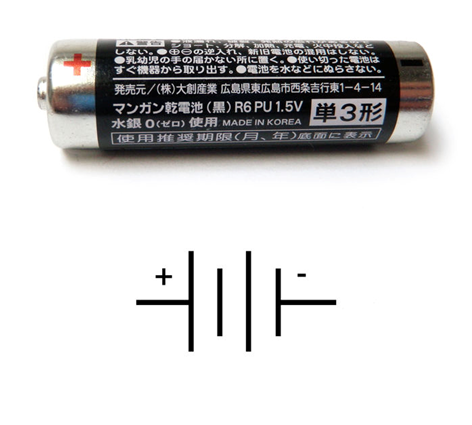
A battery is a container which converts chemical energy into electricity. To over-simplify the matter, you can say that it "stores power."

By placing batteries in series you are adding the voltage of each consecutive battery, but the current stays the same.  For instance, an AA-battery is 1.5V. If you put 3 in series, it would add up to 4.5V. If you were to add a fourth in series, it would then become 6V.

By placing batteries in parallel the voltage remains the same, but the amount of current available doubles. This is done much less frequently than placing batteries in series, and is usually only necessary when the circuit requires more current than a single series of batteries can offer.

It is recommended that you get a range of AA battery holders. For instance, I would get an assortment that holds 1, 2, 3, 4, and 8 AA batteries.

Batteries are represented in a circuit by a series of alternating lines of different length. There are also additional marking for power, ground and the voltage rating.


Read more ...

May 6, 2013

Switches

Switches

A switch is basically a mechanical device that creates a break in a circuit. When you activate the switch, it opens or closes the circuit. This is dependent on the type of switch it is.

Normally open (N.O.) switches close the circuit when activated.

Normally closed (N.C.) switches open the circuit when activated.

As switches get more complex they can both open one connection and close another when activated. This type of switch is a single-pole double-throw switch (SPDT).

If you were to combine two SPDT switches into one single switch, it would be called a double-pole double-throw switch (DPDT). This would break two separate circuits and open two other circuits, every time the switch was activated
Read more ...

May 5, 2013

LED (light emitting diode)

LED (light emitting diode) 


LED stands for light emitting diode. It is basically a special type of diode that lights up when electricity passes through it. Like all diodes, the LED is polarized and electricity is only intended to pass through in one direction.

There are typically two indicators to let you know what direction electricity will pass through and LED. The first indicator that the LED will have a longer positive lead (anode) and a shorter ground lead (cathode). The other indicator is a flat notch on the side of the LED to indicate the positive (anode) lead. Keep in mind that not all LEDs have this indication notch (or that it is sometimes wrong).

Like all diodes, LEDs create a voltage drop in the circuit, but typically do not add much resistance. In order to prevent the circuit from shorting, you need to add a resistor in series. To figure out how large of a resistor you need for optimum intensity, you can use this online
 LEDcalculator to figure out how much resistance is needed for a single LED. It is often good practice to use a resistor that is slightly larger in the value than what is returned by calculator.

You may be tempted to wire LEDs in series, but keep in mind that each consecutive LED will result in a voltage drop until finally there is not enough power left to keep them lit. As such, it is ideal to light up multiple LEDs by wiring them in parallel. However, you need to make certain that all of the LEDs have the same power rating before you do this (different colors often are rated differently).

LEDs will show up in a schematic as a diode symbol with lightning bolts coming off of it, to indicate that it is a glowing diode.


Read more ...

April 30, 2013

Potentiometers

Potentiometers


Potentiometers are variable resistors. In plain English, they have some sort of knob or slider that you turn or push to change resistance in a circuit. If you have ever used a volume knob on a stereo or a sliding light dimmer, then you have used a potentiometer.

Potentiometers are measured in ohms like resistors, but rather than having color bands, they have their value rating written directly on them (i.e. "1M"). They are also marked with an "A" or a "B, " which indicated the type of response curve it has.

Potentiometers marked with a "B" have a linear response curve. This means that as you turn the knob, the resistance increases evenly (10, 20, 30, 40, 50, etc.). The potentiometers marked with an "A" have a logarithmic response curve. This means that as you turn the knob, the numbers increase logarithmically (1, 10, 100, 10,000 etc.)

Potentiometers have three legs as to create a voltage divider, which is basically two resistors in series. When two resistors are put in series, the point between them is a voltage that is a value somewhere between the source value and ground.

For instance, if you have two 10K resistors in series between power (5V) and ground (0V), the point where these two resistors meet will be half the power supply (2.5V) because both of the resistors have identical values. Assuming this middle point is actually the center pin of a potentiometer, as you turn the knob, the voltage on the middle pin will actually increase towards 5V or decrease toward 0V (depending which direction that you turn it). This is useful for adjusting the intensity of an electrical signal within a circuit (hence its use as a volume knob).

This is represented in a circuit as a resistor with an arrow pointing towards the middle of it.

If you only connect one of the outer pins and the center pin to the circuit, you are only changing the resistance within the circuit and not the voltage level on the middle pin. This too is a useful tool for circuit building because often you just want to change the resistance at a particular point and not create an adjustable voltage divider.

This configuration is often represented in a circuit as a resistor with an arrow coming out of one side and looping back in to point towards the middle.
Read more ...

April 28, 2013

Integrated Circuits

Integrated Circuits


An integrated circuit or monolithic integrated circuit (also referred to as an IC, a chip, or a microchip) is a set of electronic circuits on one small plate ("chip") of semiconductor material, normally silicon. This can be made much smaller than a discrete circuit made from independent components.

Integrated circuits are used in virtually all electronic equipment today and have revolutionized the world of electronics. Computers, mobile phones, and other digital home appliances are now inextricable parts of the structure of modern societies, made possible by the low cost of producing integrated circuits.


ICs can be made very compact, having up to several billion transistors and other electronic components in an area the size of a fingernail. The width of each conducting line in a circuit (the line width) can be made smaller and smaller as the technology advances; in 2008 it dropped below 100 nanometers and in 2013 it is expected to be in the tens of nanometers.


An integrated circuit is an entire specialized circuit that has been miniaturized and fit onto one small chip with each leg of the chip connecting to a point within the circuit. These miniaturized circuits typically consist of components such as transistors, resistors, and diodes.

For instance, the 
internal schematic for a 555 timer chip has over 40 components in it.

Like transistors, you can learn all about integrated circuits by looking up their datasheets. On the datasheet you will learn the functionality of each pin. It should also state the voltage and current ratings of both the chip itself and each individual pin.

Integrated circuits come in a variety of different shapes and sizes. As a beginner, you will be mainly working with DIP chips. These have pins for through-hole mounting. As you get more advanced, you may consider SMT chips which are surface mount soldered to one side of a circuit board.

The round notch on one edge of the IC chip indicates the top of the chip. The pin to the top left of the chip is considered pin 1. From pin 1, you read sequentially down the side until you reach the bottom (i.e. pin 1, pin 2, pin 3..). Once at the bottom, you move across to the opposite side of the chip and then start reading the numbers up until you reach the top again.

Keep in mind that some smaller chips have a small dot next to pin 1 instead of a notch at the top of the chip.

There is no standard way that all ICs are incorporated into circuit diagrams, but they are often represented as boxes with numbers in them (the numbers representing the pin number).


Classification

Integrated circuits can be classified into analog, digital and mixed signal (both analog and digital on the same chip).
Digital integrated circuits can contain anywhere from one to millions of logic gates, flip-flops, multiplexers, and other circuits in a few square millimeters. The small size of these circuits allows high speed, low power dissipation, and reduced manufacturing cost compared with board-level integration. These digital ICs, typically microprocessors, DSPs, and micro controllers, work using binary mathematics to process "one" and "zero" signals.

Analog ICs, such as sensors, power management circuits, and operational amplifiers, work by processing continuous signals. They perform functions like amplification, active filtering, demodulation, and mixing. Analog ICs ease the burden on circuit designers by having expertly designed analog circuits available instead of designing a difficult analog circuit from scratch.

ICs can also combine analog and digital circuits on a single chip to create functions such as A/D converters and D/A converters. Such mixed-signal circuits offer smaller size and lower cost, but must carefully account for signal interference.

Modern electronic component distributors often further sub-categorize the huge variety of integrated circuits now available:

  • Digital ICs are further sub-categorized as logic ICs, memory chips, interface ICs (level shifters, serializer/deserializer, etc.), Power Management ICs, and programmable devices.
  • Analog ICs are further sub-categorized as linear ICs and RF ICs.
  • mixed-signal integrated circuits are further sub-categorized as data acquisition ICs (including A/D converters, D/A converter, digital potentiometers) and clock/timing ICs.
Read more ...

April 26, 2013

transistor

Transistors

A transistor takes in a small electrical current at its base pin and amplifies it such that a much larger current can pass between its collector and emitter pins. The amount of current that passes between these two pins is proportional to the voltage being applied at the base pin.

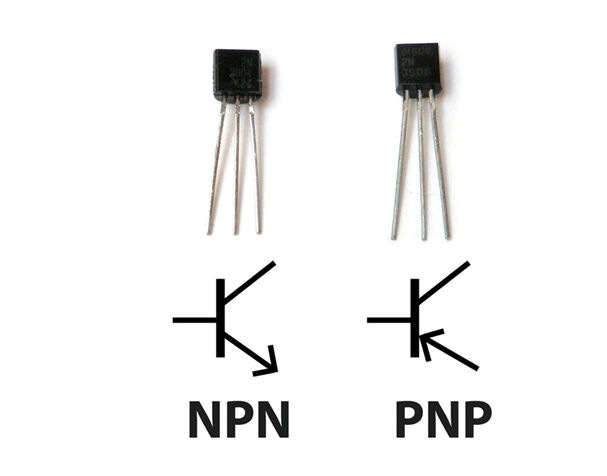
There are two basic types of transistors, which are NPN and PNP. These transistors have opposite polarity between collector and emitter. For a very comprehensive intro to transistors check out
 this page.

NPN transistors allow electricity to pass from the collector pin to the emitter pin. They are represented in a schematic with a line for a base, a diagonal line connecting to the base, and a diagonal arrow pointing away from the base.

PNP transistors allow electricity to pass from the emitter pin to the collector pin. They are represented in a schematic with a line for a base, a diagonal line connecting to the base, and a diagonal arrow pointing towards the base.

Transistors have their part number printed on them and you can look up their datasheets online to learn about their pin layouts and their specific properties. Be sure to take note of the transistor's voltage and current rating as well.

Read more ...

April 24, 2013

Diodes

Diodes

Diodes are components which are polarized. They only allow electrical current to pass through them in one direction. This is useful in that it can be placed in a circuit to prevent electricity from flowing in the wrong direction.

Another thing to keep in mind is that it requires energy to pass through a diode and this results in a drop of voltage. This is typically a loss of about 0.7V. This is important to keep in mind for later when we talk about a special form of diodes called LEDs.

The ring found on one end of the diode indicates the side of the diode which connects to ground. This is the cathode. It then follows that the other side connects to power. This side is the anode.

The part number of the diode is typically written on it, and you can find out its various electrical properties by looking up its datasheet.

They are represented in schematic as a line with a triangle pointing at it. The line is that side which connected to ground and the bottom of the triangle connects to power.

Read more ...

April 23, 2013

Capacitors

 Capacitors


A capacitor is a component that stores electricity and then discharges it into the circuit when there is a drop in electricity. You can think of it as a water storage tank that releases water when there is a drought to ensure a steady stream.

Capacitors are measured in Farads. The values that you will typically encounter in most capacitors are measured in pico farad (pF), nano farad (nF), and micro farad (µF). These are often used interchangeably and it helps to have a
 conversion chart at hand.

The most commonly encountered types of capacitors are ceramic disc capacitors that look like tiny M&Ms with two wires sticking out of them and electrolytic capacitors that look more like small cylindrical tubes with two wires coming out the bottom (or sometimes each end).

Ceramic disc capacitors are non-polarized, meaning that electricity can pass through them no matter how they are inserted in the circuit. They are typically marked with a number code which needs to be decoded. Instructions for reading ceramic capacitors can be found
 here. This type of capacitor is typically represented in a schematic as two parallel lines.

Electrolytic capacitors are typically polarized. This means that one leg needs to be connected to the ground side of the circuit and the other leg must be connected to power. If it is connected backwards, it won't work correctly. Electrolytic capacitors have the value written on them, typically represented in µF. They also mark the leg which connects to ground with a minus symbol (-). This capacitor is represented in a schematic as a side-by-side straight and curved line. The straight line represents the end which connects to power and the curve connected to ground.

Read more ...

April 22, 2013

Learn about resisters


Resistors


As the name implies, resistors add resistance to the circuit and reduces the flow of electrical current. It is represented in a circuit diagram as a pointy squiggle with a value next to it.


The different markings on the resistor represent different values of resistance. These values are measured in ohms.
Resistors also come with different wattage ratings. For most low-voltage DC circuits, 1/4 watt resistors should be suitable.
You read the values from left to right towards the (typically) gold band. The first two colors represent the resistor value, the third represents the multiplier, and the fourth (the gold band) represents the tolerance or precision of the component. You can tell the value of each color by looking at a resistor color value chart.
Or... to make your life easier, you could simply look up the values using a graphical resistance calculator.

Anyhow... a resistor with the markings brown, black, orange, gold will translate as follows:

1 (brown) 0 (black) x 1,000 = 10,000 with a tolerance of +/- 5%

Any resistor of over 1000 ohms is typically shorted using the letter K. For instance, 1,000 would be 1K; 3,900, would translate to 3.9K; and 470,000 ohms would become 470K.

Values of ohms over a million are represented using the letter M. In this case, 1,000,000 ohms would become 1M.

Anyhow... a resistor with the markings brown, black, orange, gold will translate as follows:
1 (brown) 0 (black) x 1,000 = 10,000 with a tolerance of +/- 5%
Any resistor of over 1000 ohms is typically shorted using the letter K. For instance, 1,000 would be 1K; 3,900, would translate to 3.9K; and 470,000 ohms would become 470K.
Values of ohms over a million are represented using the letter M. In this case, 1,000,000 ohms would become 1M.

Read more ...
Designed By Published.. Blogger Templates